1. Design in Excel
Open any spreadsheet editor — Excel, Google Sheets, LibreOffice, whatever you prefer. Make your report look exactly right. Headers, colors, borders, number formats, logos. Save as .xlsx.
You know that feeling when you open Excel and just make a report look right? The fonts, the colors, the borders — it takes a few minutes and it looks professional. Now imagine dropping a Go library into your project that fills that template with live data. That’s XLFill.
Here’s a template you’d design:
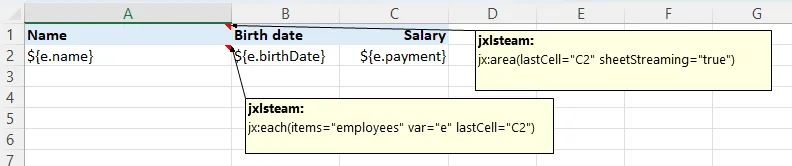
And here’s what XLFill produces:
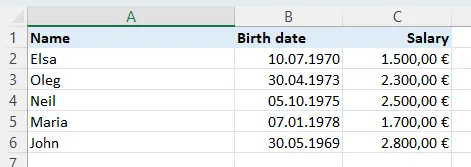
Same fonts. Same colors. Same borders. You didn’t write a single line of code for any of that styling. The template is the design.
1. Design in Excel
Open any spreadsheet editor — Excel, Google Sheets, LibreOffice, whatever you prefer. Make your report look exactly right. Headers, colors, borders, number formats, logos. Save as .xlsx.
2. Drop in a few annotations
Put ${employee.Name} in cells where data should go. Add a jx:each(...) command in a cell comment to define a loop. That’s it — two things to learn.
3. Fill from Go
One function call: xlfill.Fill("template.xlsx", "output.xlsx", data). Your data flows into the template. Every pixel of formatting — preserved.
4. Ship it
Your users get a real .xlsx file. Opens in Excel, Google Sheets, LibreOffice. Not a CSV. Not an HTML table someone has to squint at. A proper, beautiful spreadsheet.
If you’ve ever built Excel reports in Go (or any language, really), this table will feel painfully familiar:
| The old way (cell-by-cell code) | With XLFill (template-first) | |
|---|---|---|
| How you design | Line by line in Go code | Visually in Excel — like a normal person |
| Changing the layout | Edit code, rebuild, redeploy, pray | Edit the .xlsx file. Done. |
| Who can update it? | Only developers | Anyone who knows Excel |
| Styling & formatting | 20 lines of verbose struct literals per style | It’s already in the template |
| Formulas | Build formula strings by hand | Write them in Excel — XLFill expands them |
| Merged cells | Code the exact ranges | Just merge them in Excel |
| Conditional formatting | Most libraries don’t even support it | It’s in the template — just works |
| Code complexity | Grows with every column, every section | Stays tiny — your code only provides data |
| When something breaks | Good luck debugging fmt.Sprintf("A%d", row+2) | Open the template. Look at it. |
“I used to spend 200 lines of Go code wrestling with cell styles, merging headers, and adjusting column widths. Then one day our finance team redesigned the whole report. I had to rewrite everything. Now? My business analyst designs the template in Excel, and my Go code is 10 lines. When they want changes, they just update the template. I don’t even hear about it.”
That’s the shift. The template becomes the single source of truth for how the report looks. Your code becomes the single source of truth for the data. Nobody steps on each other’s toes.
See the full case
Read Why XLFill? — a detailed breakdown with real Go code showing 40+ lines of hard-coded pain reduced to 3 lines.
Just try it
Get started — install, build a template, fill it with data. Five minutes, start to finish.