jx:if
jx:if conditionally includes or excludes a template area based on a boolean expression. Think of it as an if statement for your spreadsheet layout.
Syntax
Section titled “Syntax”jx:if(condition="e.Active" lastCell="C1")Attributes
Section titled “Attributes”| Attribute | Description | Required |
|---|---|---|
condition | Boolean expression | Yes |
lastCell | Bottom-right cell of the conditional area | Yes |
ifArea | Area ref to render when true (advanced) | No |
elseArea | Area ref to render when false (advanced) | No |
Basic usage
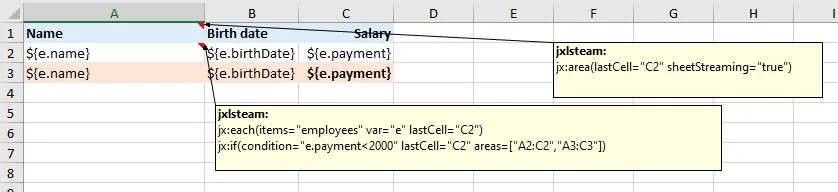
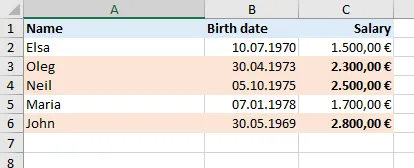
Section titled “Basic usage”When the condition is true, the area is rendered. When false, it’s omitted and subsequent rows shift up to fill the gap.
Template:
Output (condition true):
If without else
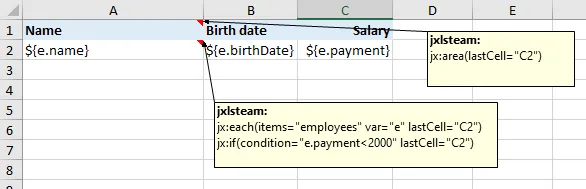
Section titled “If without else”The most common pattern — show something only when a condition is met:
Template:
Output:
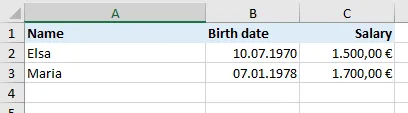
When the condition is false, the area simply disappears and rows below shift up.
Inside a loop
Section titled “Inside a loop”jx:if is powerful when combined with jx:each. Only show rows for items matching a condition:
Cell A1 comment:  jx:area(lastCell="C2")  jx:each(items="employees" var="e" lastCell="C2")
Cell A2 comment:  jx:if(condition="e.Active" lastCell="C2")
Only active employees appear in the output.
Complex conditions
Section titled “Complex conditions”Any expression returning a boolean works:
jx:if(condition="e.Age >= 18 && e.Department == 'Engineering'" lastCell="C1")jx:if(condition="len(items) > 0" lastCell="D5")If/Else areas
Section titled “If/Else areas”For more advanced control, render different template regions depending on the condition:
jx:if(condition="hasData" ifArea="A2:C5" elseArea="A7:C8" lastCell="C8")When hasData is true, the A2:C5 region is rendered. When false, A7:C8 is rendered instead. This lets you show a data table or a “no results” message from the same template.
Try it
Section titled “Try it”Download the runnable example: template t07.xlsx | output 07_if_command.xlsx | code snippet
Next command
Section titled “Next command”Need to fill a dynamic grid with headers and data rows?